Install the holystic extension
The extension is a quiet companion to the daily reflection. With your permission it keeps a count of the kinds of sites you spend time on — work, learning, social, news, video — and sends a one-line summary to your reflection at the end of the day. The reflection that comes back can then meet the day in full, including the parts you've already forgotten.
Download the extension
A zip file with the unpacked Chrome extension.
Download holystic-extension-latest.zip1 Unzip the file
On Mac, double-click the downloaded zip. On Windows, right-click → Extract All. You should end up with a folder named something like holystic-extension-latest. Remember where it is — you'll point Chrome at it in a moment.
2 Open Chrome's extensions page
Copy this address into a new Chrome tab (Chrome won't let regular links navigate to internal pages, so you have to paste it):
chrome://extensions
3 Turn on Developer mode
In the top-right corner of the extensions page, flip the Developer mode toggle. New buttons appear in the upper-left.
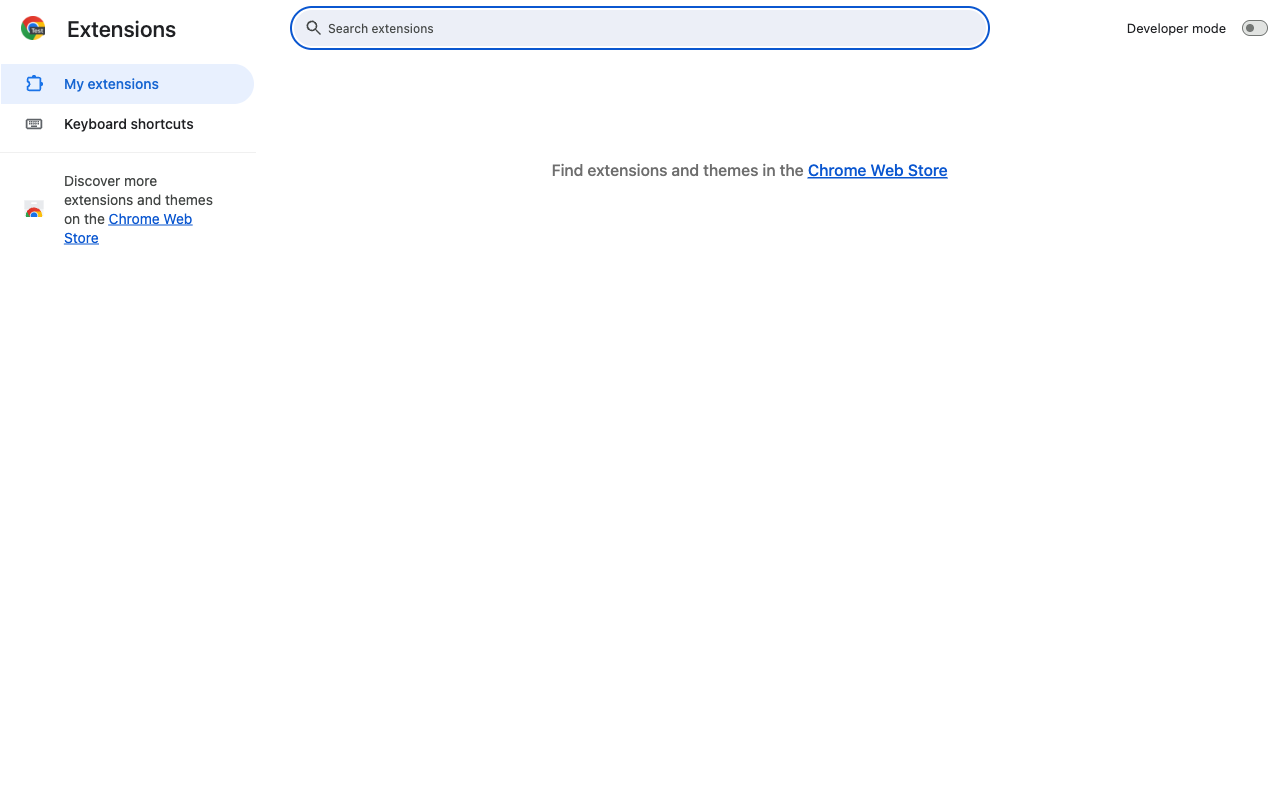
The Developer mode toggle is in the upper-right corner.
4 Click "Load unpacked"
After turning on Developer mode, a new row of buttons appears: Load unpacked, Pack extension, Update. Click Load unpacked.
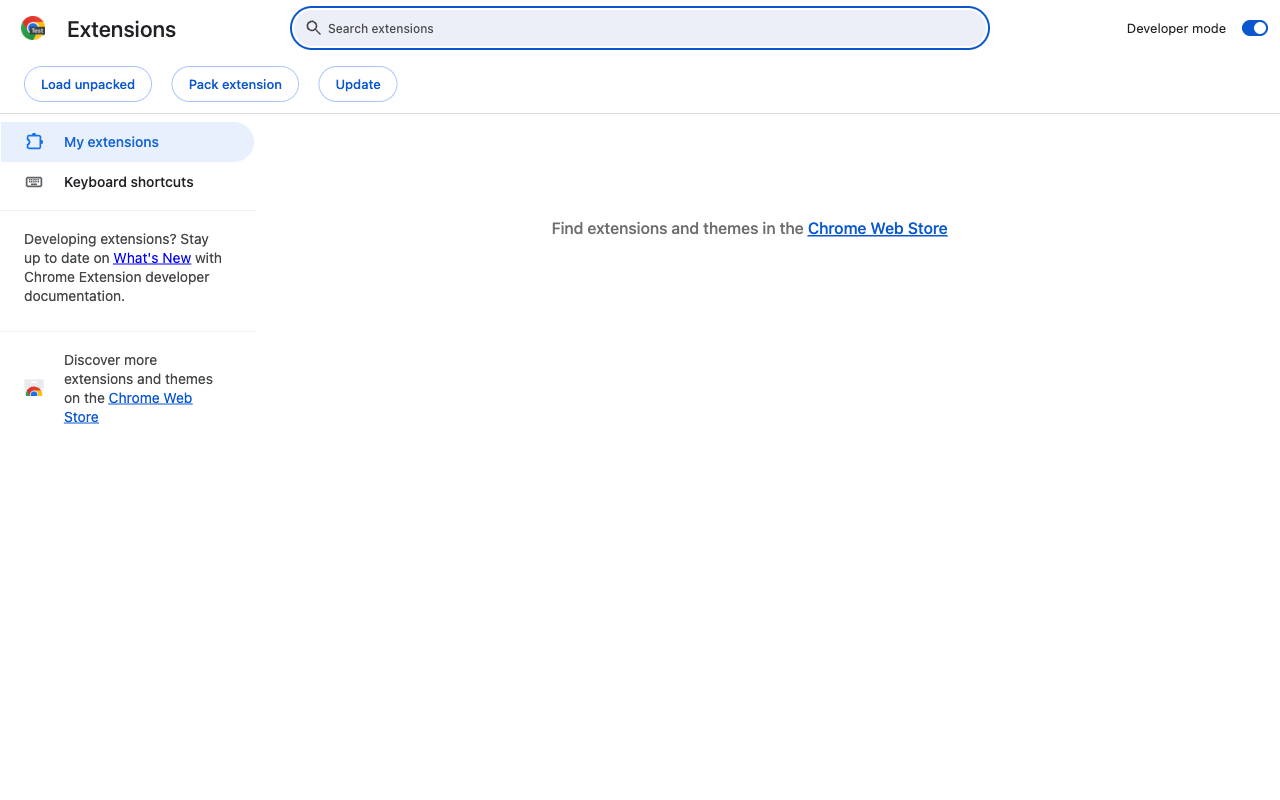
"Load unpacked" appears once Developer mode is on.
5 Select the unzipped folder
A file picker opens. Navigate to the holystic-extension-latest folder you unzipped in Step 1 and choose it. (Pick the folder itself, not any file inside.)
6 Confirm it loaded
You should see the holystic card appear on the extensions page, with version 0.0.1.
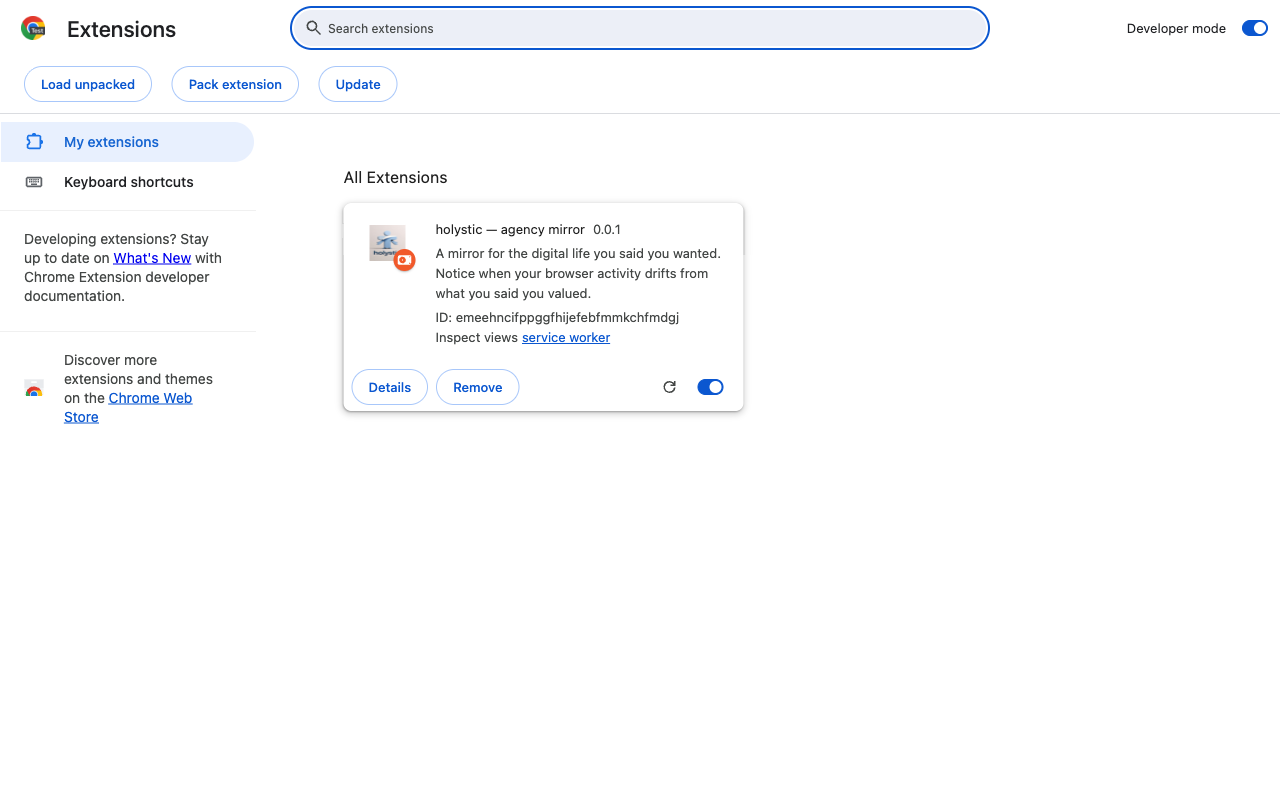
Look for "holystic". The extension ID will match exactly: emeehncifppggfhijefebfmmkchfmdgj.
7 Pin the toolbar icon
In Chrome's toolbar, click the puzzle-piece icon. Find holystic in the list and click the pin icon next to it so it stays visible. Then click the holystic icon to open the popup — you'll be prompted to sign in or create an account.
Updates
Until the Web Store listing lands, updates are manual: come back to this page, download the new zip, unzip, and click the circular reload icon on the holystic card in chrome://extensions. (Or remove and re-load.) When the Web Store version goes live, Chrome will handle updates automatically.
Privacy
What it never sees: the URLs themselves, page content, what you type, who you message, your browsing history, cookies, or anything inside other apps. Incognito windows are always excluded.
The monitoring is off by default. The extension popup asks you explicitly the first time you sign in; you can flip it back off any time from the popup's Privacy section or the extension's Options page.
Trouble?
If the install doesn't work, drop us a note at support@holystic.ai with the Chrome version you're running (find it at chrome://version) and a description of what you saw.